How To Recover Deleted Files on Android Internal and SD Card......
Tech 6#
How To Recover Deleted Files on Android Internal and SD Card...
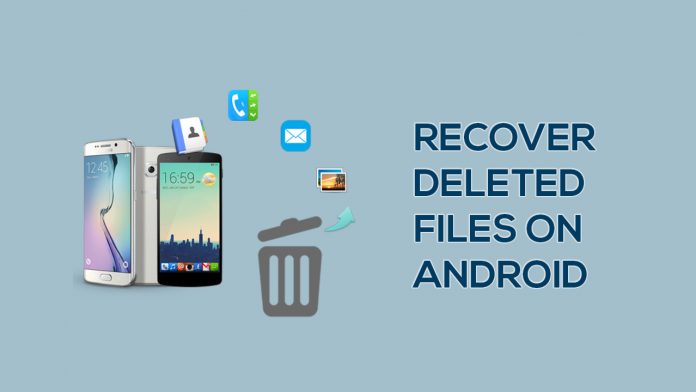
If you have mistakenly deleted a
file, picture or audio from your android smartphone in the past, then you can
understand the feeling of “disgust” and heartbreak that accompanies the
unintentional act. Well, in times past when a scenario such as this occurs, you
had no choice but to move on and accept the loss. Thanks to the advancement in
mobile technology, we can now recover deleted files on android phones. It is so
easy, anyone can carry out the process and recover deleted files without
breaking a sweat.
This article shifts attention to a
tool that will allow you to recover deleted files on android (the internal
memory as well as its SD card). So let’s get started.
The tool on focus here is the FORecovery
Android Data Recovery tool. It possesses the capacity to allow you
to recover lost files on both the internal and SD memory of your Android
smartphone. All you need to do is to follow the simple steps highlighted below
and you would be fine.
Recover Lost Files from Android's Internal memory
1. Synchronize your Android Phone
with your PC
To begin this first step, you must
have the FORecovery Android Data Recovery tool installed on your PC. Once this
is done, run the toolkit and then connect your Android smartphone to your PC
using a USB cable. Select the data recovery option and proceed to the next
step. If you encounter any difficulty, make sure that your android phone is not
locked and USB debugging is enabled.
2. Select the type of file you want
to recover
This step saves you the stress of
recovering every type of file since the toolkit recovers all types of files by
default. All you need to do here is to identify the exact type of file that you
want to be recovered and then click the “next” button. This makes sure that the
recovery process is short and also effective.
3. Select Advanced or Standard
Scan
Your choice of scanning
technique here depends on the type file that you want to recover. Standard
scanning will carry out the task faster, but may sometimes not give you the
results that you desire. An advanced search, on the other hand, may take more
time but should give you a higher chance of success. When you are through
selecting the scanning technique that you want, proceed by clicking “start”.
This commences the recovery process while you wait.
4.
Recover your File!
Once the scanning is done, the
recovered data are displayed and you can get a better view through the preview
catalog. Once you have found your lost file, click “recover” and it will get
saved on your PC. You can transfer it back to your android phone whenever you
please.
Recover Deleted Files From SD Card.
The series of steps highlighted below
are vital to recovering lost data on SD cards.
1.
Launch your toolkit and select the
Data recovery option. Click on SD card recovery at the bottom section of the
program
2.
Connect your SD card to your PC
through a card reader or your smartphone through a USB cable.
3.
Select the SD card icon that appears
and click continue as soon as the SD card is detected.
4.
Select the scanning technique;
standard or advanced depending on your preference. Click next to proceed.
5.
Once scanning is done, select a
category and view its contents. This will allow you to select the files to be
recovered and then you are safe to click “Recover” in order to save them.
For those who have any doubt regarding this post feel free to post a comment in the comment box.
I will make sure that I will reply to your comments.
I will make sure that I will reply to your comments.


Comments
Post a Comment